Features · every process
Every process, explained
Seventy-plus processes in seventeen families. Each card says what the process does in the user guide's own words; open one for its menu path, the image state it expects, and what it supports.
Calibration
6 processes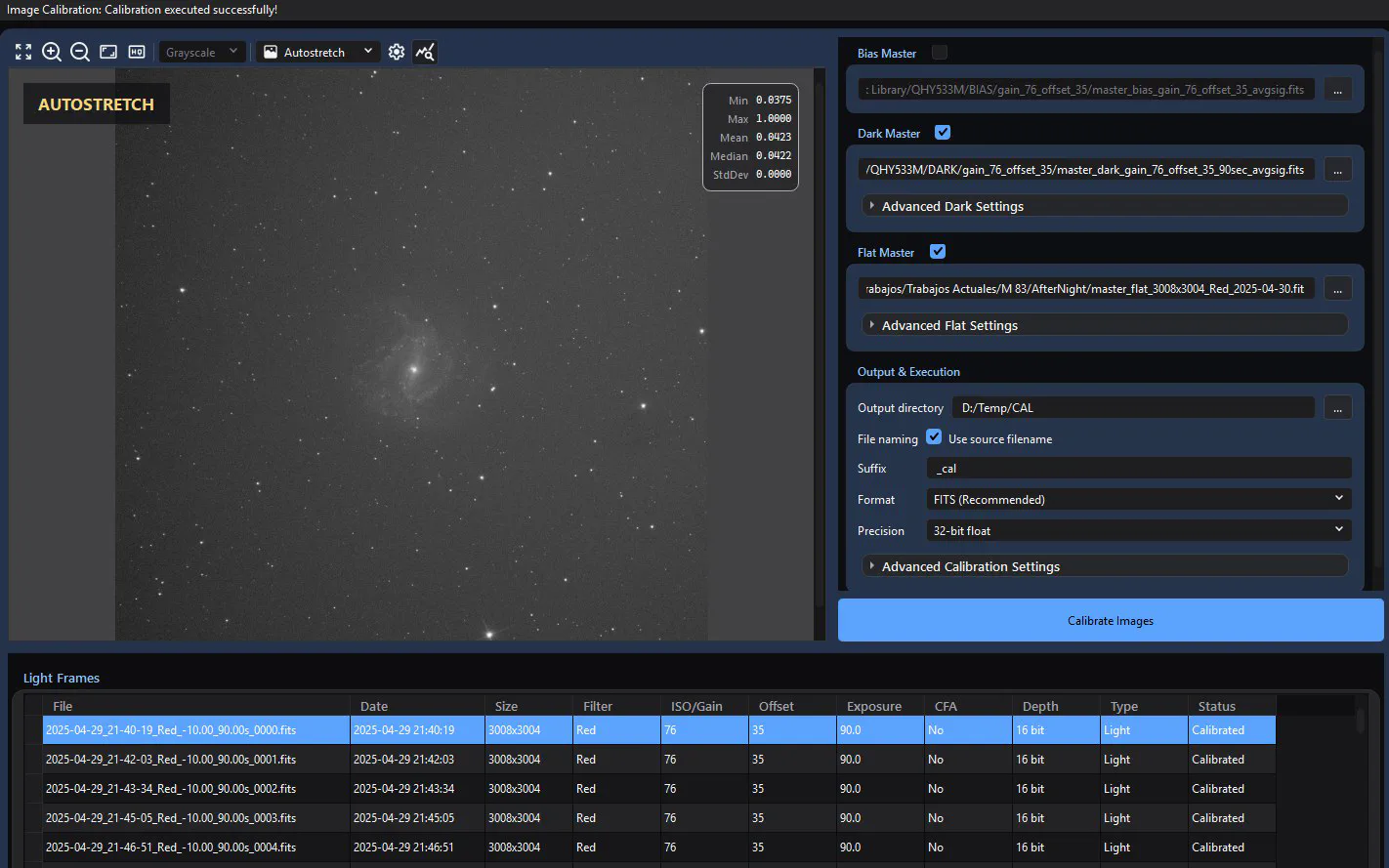
Image Calibration
Image Calibration is the focused batch tool for correcting uncalibrated linear still frames with optional prepared bias, dark, and flat masters.
- Menu
- Process > Preprocess > Image Calibration
- Image state
- Uncalibrated linear mono, CFA, or RGB stills. Prepared masters must already contain the corrections appropriate to their role. Calibrate CFA before debayering.
- Preview
- Static preview of the selected source only. CFA sources are debayered automatically for display. Settings do not calculate a calibrated preview.
- Masks
- Not supported. No application mask is read or blended.
- Sequences
- No direct SER, video, or image-list sequence input. Extract/export to still files first.
- Needs
- No external executable, catalog, or network service. Saving uses the deployed AfterNight codecs; camera RAW is readable but cannot be written back as RAW.
Cosmetic Correction
Cosmetic Correction replaces isolated bright or dark outliers with a local median, then blends that corrected result with the source by Amount.
Live previewSequences
- Menu
- Process > Filters > Cosmetic Correction Filter
- Image state
- Calibrated linear light/master with residual isolated defects. It also accepts nonlinear images.
- Preview
- Live full-image RT preview with standard viewer/autostretch controls and optional preview-area selection. Parameter changes schedule refresh.
- Masks
- Detection runs without the image-view mask; the standard framework post-blends the corrected result through an enabled/inverted mask.
- Sequences
- Supported frame by frame through the standard sequence pipeline.
- Needs
- None; the AfterNight engine's own impulse rejection over its order-statistic median.
Debayer
Debayer reconstructs full red, green, and blue values from a single-channel Bayer color-filter-array (CFA) mosaic.
Sequences
- Menu
- Process > Color Spaces > Debayer
- Image state
- Calibrated, linear, unstretched CFA data. Debayer after bias/dark/flat correction unless a CFA-aware downstream workflow deliberately defers reconstruction.
- Preview
- None. OK runs the full still or sequence; there is no Apply or Reset action.
- Masks
- Not supported.
- Sequences
- Yes. Every frame is demosaiced and written into a new sequence of the source's container; a progress window's Cancel stops the run and leaves nothing behind.
- Needs
- None at run time: the demosaic methods are part of AfterNight's image engine. RAW decoding happens before this process.
Split CFA
Split CFA opens new grayscale images or sequences derived directly from a Bayer mosaic.
Sequences
- Menu
- Process > Color Spaces > Split CFA; the window's title is Split CFA followed by the target's name
- Image state
- Calibrated linear CFA data before Debayer. Ha/OIII requires appropriate dual-band acquisition.
- Preview
- None. OK executes immediately.
- Masks
- Unsupported and ignored.
- Sequences
- Supported; every frame is split and written into new sequences of the source's container, with progress and Cancel.
- Needs
- None.
Merge CFA
Merge CFA interleaves four same-size grayscale positional planes into a new single-channel Bayer mosaic.
Sequences
- Menu
- Process > Color Spaces > Merge CFA
- Image state
- Four calibrated linear positional planes produced by Split CFA Channels, with identical crop/geometry.
- Preview
- None.
- Masks
- Unsupported.
- Sequences
- Supported when all four inputs are sequences; they are joined frame by frame into a new sequence, with progress and Cancel.
- Needs
- None.
CFA Integer Resample
CFA Integer Resample changes an undebayered Bayer mosaic by an integer factor without mixing the four CFA positions.
Sequences
- Menu
- Process > Geometry > CFA Integer Resample
- Image state
- Calibrated linear CFA data before Debayer.
- Preview
- None. Read-only geometry/memory estimates are the only pre-execution feedback.
- Masks
- Unsupported.
- Sequences
- Supported: every frame is resampled into a new sequence that replaces the view's, with progress and Cancel.
- Needs
- None.
Registration & alignment
3 processes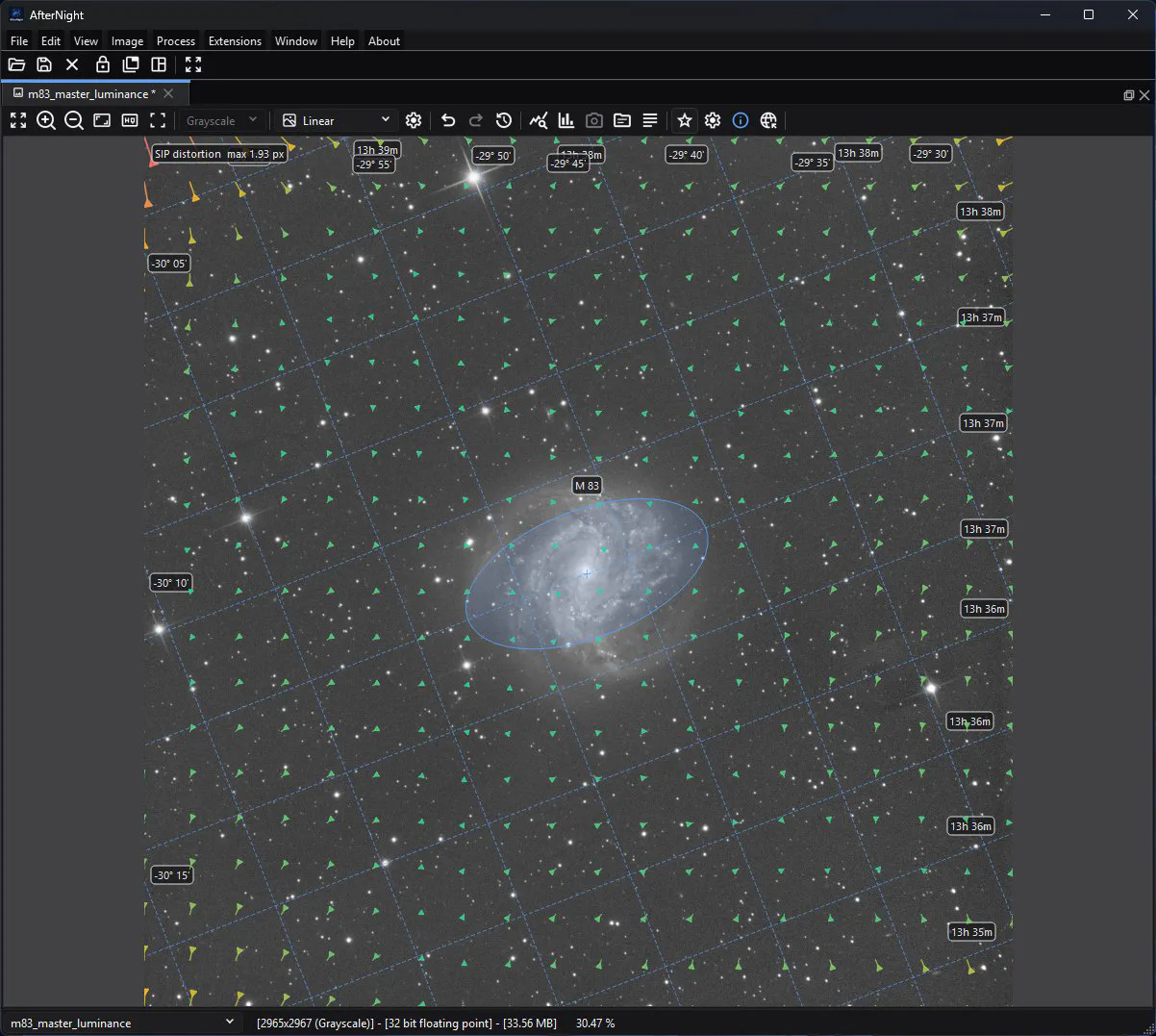
Image Registration
Image Registration is the focused batch tool for measuring transforms between compatible still frames and, in a separate step, resampling included successful frames onto one output geometry.
- Menu
- Process > Preprocess > Image Registration
- Image state
- Calibrated linear stills before normalization and stacking. Do not register stretched display exports when calibrated linear sources exist.
- Preview
- Static preview of the selected source only. Registration and alignment settings do not render a calculated preview. Blink Compare... provides a separate source-comparison view.
- Masks
- Not supported. No active application mask is read, transformed, or blended.
- Sequences
- No direct SER, video, or image-list sequence input. Extract/export sequence frames to still files first.
- Needs
- Star matching and phase correlation are native engine paths. Auto-solve unsolved frames needs a configured ASTAP, local/online Astrometry.net, or internal Gaia solver route. Enrich with Gaia catalog needs a ready local Gaia catalog and valid WCS. No external service is contacted unless the selected plate-solver configuration does so.
Plate Solving
Plate Solving finds the sky-coordinate model for the active still image.
Needs a catalog or solver
- Menu
- Image > Information > Plate Solve; the focused image toolbar also has Plate Solve; Ctrl+P works while that toolbar action is visible and enabled.
- Image state
- Guidance: use the calibrated image whose geometry later steps will consume, with detectable, unsaturated stars. The implementation accepts linear or nonlinear pixels but does not validate processing state. Re-solve after geometry-changing edits that invalidate WCS.
- Preview
- No RT or static preview. Solve analyzes the complete current in-memory image through a temporary FITS.
- Masks
- Unsupported. An attached/enabled mask is not read or blended.
- Sequences
- Unsupported by this dialog. Use a still or the owning registration/integration workflow for batch behavior.
- Needs
- One minimally configured route: a ready local Gaia chunk catalog, ASTAP plus its compatible star database, local solve-field plus matching indexes on supported non-Windows builds, or a Nova Astrometry.net API key and network access.
Star Profiler v1 and v2
Both Star Profiler windows analyze the image a view shows without modifying it.
- Menu
- Process > Star Processing > Star Profiler v1 | Process > Star Processing > Star Profiler v2
Stacking & integration
4 processes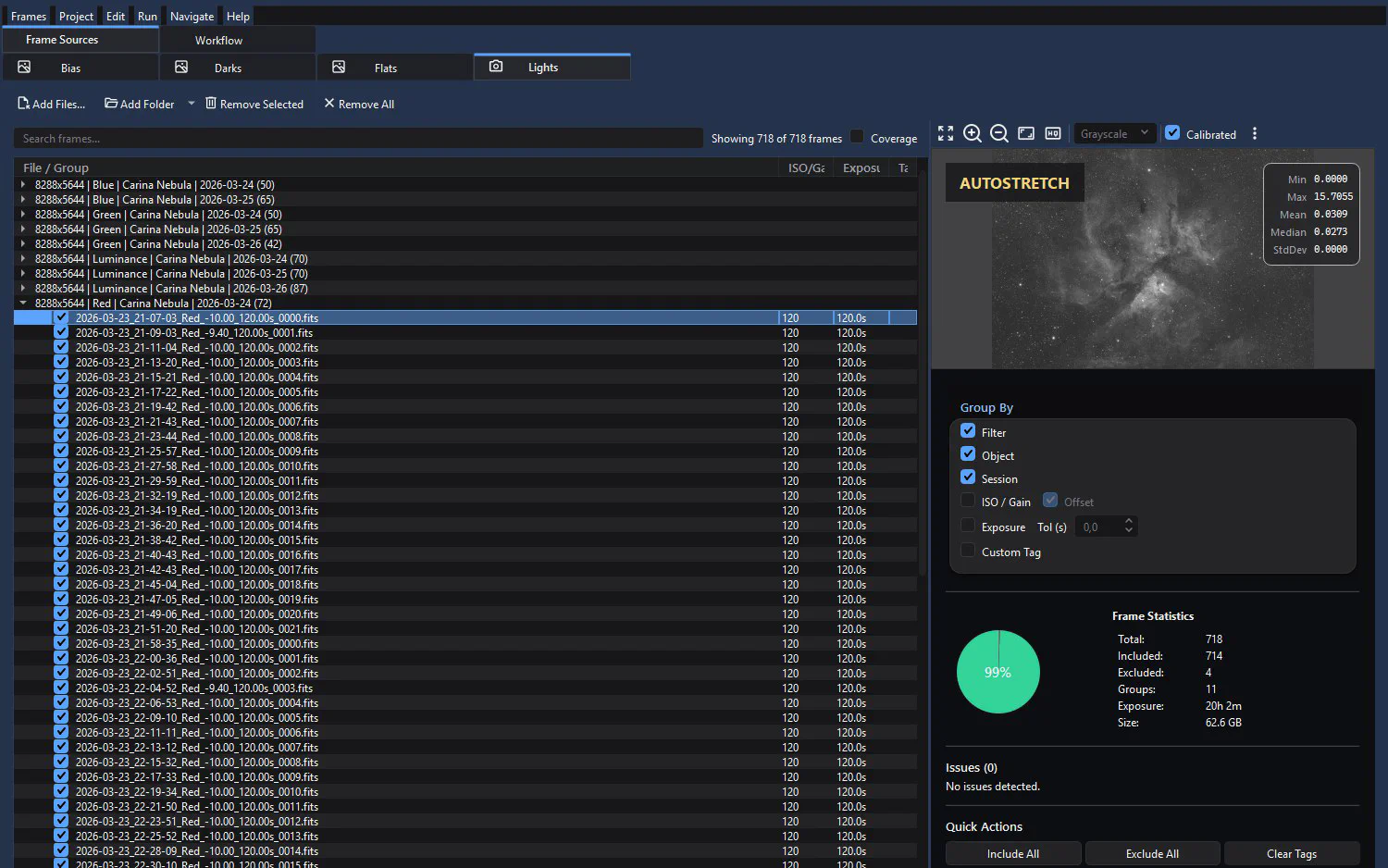
Image Integration
Image Integration is AfterNight's persistent, end-to-end project surface for turning still astrophotography frames into calibrated, registered, aligned, normalized, and stacked linear masters.
- Menu
- Process > Preprocess > Image Integration. The Dashboard Image Integration card is a second entry point.
- Image state
- Linear acquisition data. RAW white balance is forcibly disabled and workflow calibration is performed in the raw-before-demosaic domain. Final masters remain linear.
- Preview
- The source tabs provide a read-only static frame preview, and the Lights preview adds an off-by-default Calibrated toggle that applies the currently matched, already available bias/dark/flat masters and Light Calibration Settings to the preview only. It can preview a usable subset of calibration; complete coverage is not implied. There is no real-time process preview and no Apply-to-active-image action. Manual Registration, Track Comet, and Blink Comparator provide additional task-specific inspection. Execution writes files.
- Masks
- Unsupported. The process is file/project based and does not read the active image's mask.
- Sequences
- Unsupported. Import accepts engine-supported still-image extensions, not SER, image-list, or video sequences. Extract frames first.
- Needs
- No external tool is required for basic star matching and stacking. Auto-solving, placing a Mosaic panel star matching cannot register, or solving a final master needs a configured local/online plate solver; Gaia enrichment needs an installed catalog. Network use depends on the chosen solver, and Mosaic alignment calls it whatever Auto-solve unsolved frames says.
Image Integration Lite
Image Integration Lite turns one simple, single-target set of still light and optional calibration frames into one linear stacked master per resolution, filter, and object group.
- Menu
- Process > Preprocess > Image Integration Lite
- Image state
- Linear acquisition frames. Lite preserves the shared raw-before-demosaic calibration workflow and produces linear masters.
- Preview
- None. The table shows file metadata and planned calibration use, but there is no image preview or Apply-to-active-image action.
- Masks
- Unsupported. Lite does not read the active view or its mask.
- Sequences
- Unsupported. SER, video, and image-list sequences are not imported; extract still frames first.
- Needs
- Deployed image codecs for the chosen input formats. A configured plate solver is needed only when Plate solve final masters is on and valid WCS cannot be propagated. Gaia enrichment is enabled internally for registration but does not make catalog availability a readiness prerequisite; without an installed catalog, a run whose lights hold a world-coordinate solution warns that it enriched nothing (see Troubleshooting).
Image Stacking
Image Stacking combines two or more already calibrated, same-geometry still images into one floating-point master per generated frame group.
- Menu
- Process > Preprocess > Image Stacking
- Image state
- Calibrated, registered, linear frames. The process does not align ordinary inputs.
- Preview
- A static preview of the selected source frame only. A CFA source is demosaiced for display by the viewer. There is no stack preview and changing settings does not recompute the preview.
- Masks
- Not supported. An application mask is not read. In every frame an exact zero - such as the border an alignment leaves where a frame does not reach - and a non-finite (NaN or infinite) sample are treated as missing: neither is combined nor judged by a rejection.
- Sequences
- No direct SER/video/sequence input. Extract or export frames to supported still files first. Folder import may add many still files.
- Needs
- No external executable or network service. Metric weighting and comet mode depend on a compatible registration_metrics.db created by AfterNight registration. CPU execution uses the deployed engine and oneTBB.
Image List Analyzer
Image List Analyzer is a top-level inspection and sequence-export utility for a temporary list of still-image files.
- Menu
- Process > Utilities > Image List Analyzer
- Image state
- Any stills the codecs can decode. Linear acquisition frames are appropriate for metadata/histogram inspection; Autostretch export creates display-rendered output and is not a linear scientific archive.
- Preview
- Read-only static sequence preview that demosaics CFA frames for display, normal Image Viewer display tools, metadata summary, histogram, frame navigation, and FPS control. It does not modify source pixels.
- Masks
- Unsupported. No active image or mask is consumed.
- Sequences
- Writes a temporary image-list manifest of the files (or their proxies) to play them in the preview, but imports stills only. Export creates SER/AVI/MP4/WebM, not an AfterNight .anseq image-list file.
- Needs
- Deployed codecs for inputs; deployed encoder support for H.264, H.265, and VP9 video export. No network or catalog is required.
Colour calibration
6 processesColor Calibration
Color Calibration balances the three channels of an RGB image, or of every frame of an RGB sequence, in one of two ways.
Mask-awareSequences
- Menu
- Process > Color Calibration > Color Calibration
- Image state
- Gradient-corrected, stacked, cropped, linear RGB. The process does not check linearity.
- Preview
- None. From Selection draws the ROI on the chosen reference view; it is not a result preview.
- Masks
- An enabled view mask weighs the result against the source; inversion is honoured. The two reference masks are outputs only and never limit the calibration.
- Sequences
- Yes: every frame, whatever the player has selected, with one measurement. A reference that is the target is the frame the view shows when Apply is pressed. Progress and Cancel are shown.
- Needs
- None
Photometric Color Calibration
Photometric Color Calibration (PCC) balances a plate-solved, linear broadband RGB image by matching its stars to a configured local Gaia DR3 catalog.
Mask-awareNeeds catalog data
- Menu
- Process > Color Calibration > Photometric Color Calibration
- Image state
- Integrated, gradient-corrected, cropped, plate-solved, broadband linear RGB before stretching, with floating-point samples held as fractions of full scale. An image marked nonlinear is refused; an image whose linearity is not recorded is accepted, and a previous PCC pass is not refused.
- Preview
- None. From Selection edits the background ROI and Show matched stars displays the fitted stars only after a successful full Apply; neither is a calibration preview.
- Masks
- Supported as a post-calibration blend. An enabled view mask and its inversion state are snapshotted at Apply; the mask does not affect star detection, catalog matching, gain fitting, or background statistics.
- Sequences
- No sequence-wide run. Over a sequence view, PCC calibrates the frame the view shows, as an edit Image History records, and only when that frame carries its own plate solution. The recording on disk and the other frames are not changed.
- Needs
- A ready local Gaia DR3 chunk catalog configured through Settings > Plate Solving. PCC makes no network request and does not use the separate SPCC Gaia XP/response repositories.
Spectrophotometric Color Calibration
Spectrophotometric Color Calibration (SPCC) calibrates a plate-solved, linear RGB image by comparing measured image-star color ratios with synthetic ratios integrated from Gaia DR3 XP spectra through a selected sensor/filter response and white reference.
Mask-awareNeeds catalog data
- Menu
- Process > Color Calibration > Spectrophotometric Color Calibration
- Image state
- Linear RGB after integration, gradient correction, and plate solving, before stretching. The target must not already be color calibrated (by PCC, SPCC, or any calibration its meaning or cards record) and must not name a narrowband filter.
- Preview
- None. Apply runs the full workflow; there is no real-time or full-image preview.
- Masks
- The target's mask weighs the result pixel by pixel: where the mask is black the source is kept, where it is white the calibrated value. Stars, fit, and sky are measured on the whole image whatever the mask.
- Sequences
- Apply on a sequence view calibrates every frame as a still image of it. Each frame needs its own plate solution, and the whole calibrated sequence is published or nothing; a recording whose frames carry no plate solution is refused.
- Needs
- Local Gaia DR3 XP sampled .anxp catalog data and local response/white-reference JSON assets. Managed downloads use network and persistent cache storage when explicitly requested or when approved missing catalog chunks are prepared on Apply.
Background Neutralization
Background Neutralization brings the background of the three colour channels of an RGB image, or of every frame of an RGB sequence, to one shared level.
Mask-awareSequences
- Menu
- Process > Color Calibration > Background Neutralization
- Image state
- Gradient-corrected, stacked, cropped, linear RGB. The process does not test linearity.
- Preview
- No processed preview. From Selection draws the ROI rectangle on the reference view only.
- Masks
- An enabled view mask weighs the result: the source where the mask is empty, the result where it is full; inversion is honoured. The mask does not change the measurement.
- Sequences
- Yes: every frame, whatever frames the player has selected. The reference is measured once and the same offsets are applied to every frame; with <--TARGET IMAGE--> the reference is the frame the view shows when OK is pressed. Progress and Cancel are shown.
- Needs
- None.
SCNR
SCNR (Subtractive Chromatic Noise Reduction) suppresses green in a three-channel RGB image, or in every frame of an RGB sequence, with one of four per-pixel protection methods.
Mask-awareSequences
- Menu
- Process > Color Calibration > SCNR Filter; window title SCNR followed by the view name
- Image state
- After gradient removal, background neutralization and colour calibration. SCNR records its result as nonlinear, so steps that need linear data refuse or warn about it afterwards.
- Preview
- None. Apply runs the full image or sequence; the window stays open for another run.
- Masks
- Yes: the result is weighed by the view's enabled mask, read when Apply is pressed; inversion is honoured
- Sequences
- Yes: every frame, whatever frames the player has selected, with the settings read at Apply; progress and Cancel are shown
- Needs
- None
Linear Match
Linear Match multiplies and offsets each channel of a target image so that its level and spread match those of a reference image.
Sequences
- Menu
- Process > Color Calibration > Linear Match
- Image state
- Linear data from comparable preprocessing; registered and cropped alike when the two images have one size, since positions are paired.
- Preview
- None. OK runs the full operation.
- Masks
- No. An enabled view mask is not applied.
- Sequences
- Yes: every frame, matched to the same reference image, behind a progress window with Cancel.
- Needs
- None.
Stretching
7 processesHistogram Transformation
Histogram Transformation permanently maps normalized image samples through a shadows/midtones/highlights transfer.
Live previewMask-awareSequences
- Menu
- Process > Intensity Transformations > Histogram Transformation
- Image state
- A calibrated linear mono/RGB master after background/color calibration and linear-only measurement, deconvolution, and denoising. Do not use on raw CFA or data that must remain photometrically linear.
- Preview
- Full real-time image preview, which is the result Apply writes, plus lower source and upper predicted histograms. Manual settings are previewed asynchronously. An Auto-stretch Preview area uses the whole target's statistics, so it shows exactly what Apply writes there. The histogram prediction is quantized and does not include the active mask.
- Masks
- Supported as a final original/processed blend. Inversion and grayscale/RGB mask-channel rules are honored. The mask does not alter the transfer curve or clipping readouts.
- Sequences
- Supported through the generic replacement-sequence path. One manual or Auto-stretch mode snapshot is used for all frames; progress and cooperative cancellation are available. Auto-stretch derives each frame's curve from that frame's own statistics, as it would stretch the frame alone. The sequence reader may apply its configured CFA debayer request.
- Needs
- None. The transform is the bundled engine's screen transfer, run on its threads.
Curves Transformation
Curves Transformation is a point-controlled remapping tool for deliberate tone and color shaping.
Live previewMask-awareSequences
- Menu
- Process > Intensity Transformations > Curves Transformation
- Image state
- Usually nonlinear for finishing contrast, saturation, or color balance; a gentle first stretch is possible but offers no statistics-driven protection
- Preview
- Asynchronous full-image RT preview; the graph uses the current preview result for its histogram
- Masks
- Supported by post-transform blending; white applies the result, black keeps the source, gray blends, and Invert Mask reverses the weights
- Sequences
- Supported; the same locked curve, interpolation, and selected component are applied to every decoded frame through a temporary replacement sequence. The sequence reader honors the view's automatic CFA debayer setting.
- Needs
- None; the curve is the bundled engine's native interpolation, run on its threads; no external tool, model, catalog, or network access
Generalized Hyperbolic Transformation
Generalized Hyperbolic Transformation (GHT) is a permanent display stretch for normalized mono or RGB images.
Live previewMask-awareSequences
- Menu
- Process > Intensity Transformations > Generalized Hyperbolic Transformation
- Image state
- Normally a calibrated linear mono/RGB master after background/color calibration and any linear-only measurement, restoration, or denoising. Image Inversion and an analytical inverse are also available, but AfterNight still marks every successful GHT-process result nonlinear.
- Preview
- Full asynchronous real-time preview, which is the result Apply writes, plus a lower source histogram and upper predicted/processed histogram. A Preview area shows exactly what Apply writes there; an STF preview area uses the whole target's statistics, never the area's own. Histogram-only prediction is quantized and does not include the active mask.
- Masks
- Supported as a final original/processed blend for stills and sequences, including mask inversion and the framework's grayscale/RGB mask-channel rules. The mask does not alter the transfer curve or immediate histogram prediction.
- Sequences
- Supported by the generic replacement-sequence path with progress and cooperative cancellation. One UI parameter snapshot is captured for the run. STF statistics and its derived curve are recomputed from each frame, so STF is intentionally per-frame adaptive. The sequence reader may apply its configured CFA debayer request.
- Needs
- None. The transform is the bundled engine's stretch, run on its threads. The cited GHS material is algorithm background, not a runtime dependency.
ArcSinh Stretch
ArcSinh Stretch is a display-stretch process for lifting faint linear signal while compressing the rate of change toward the highlights.
Live previewMask-awareSequences
- Menu
- Process > Intensity Transformations > ArcSinh Stretch
- Image state
- Linear, background-corrected, and color-calibrated data before the main display stretch
- Preview
- Asynchronous RT preview of the whole image or a selected Preview area, running Apply's own operation, plus a histogram of the preview result; disabling Preview returns the histogram to the source target
- Masks
- Supported by post-transform blending; white applies the result, black keeps the source, gray blends, and Invert Mask reverses the weights
- Sequences
- Supported; one captured parameter set is applied to every decoded frame through a temporary replacement sequence. The sequence reader honors the view's automatic CFA debayer setting.
- Needs
- None; execution uses the bundled engine and does not access a tool, model, catalog, or network service
Statistical Stretch
Statistical Stretch derives a black point and source median from the target, then uses one rational transfer to place that median near Target Median while keeping the computed black and normalized white anchors at 0 and 1.
Live previewMask-awareSequences
- Menu
- Process > Intensity Transformations > Statistical Stretch
- Image state
- Linear, background-corrected, and color-calibrated data before the main display stretch
- Preview
- Asynchronous RT preview that is the result Apply writes, plus a histogram of the mask-aware preview; disabling Preview returns the histogram to the source; a Preview area shows the whole target's stretch cropped to the area, exactly what Apply writes there
- Masks
- Supported for preview, Apply, and sequences; white applies the result, black keeps the source, gray blends, and Invert Mask reverses the weights
- Sequences
- Supported: every frame is stretched from its own statistics, as the process stretches that frame alone, with progress, cooperative cancellation, and replacement of the sequence only after every frame succeeds
- Needs
- None; execution uses the bundled engine and does not access a tool, model, catalog, or network service
Gamma Correction
Gamma Correction applies a pure normalized power law to stored samples or one selected RGB-derived component.
Live previewMask-awareSequences
- Menu
- Process > Adjustments > Gamma Correction
- Image state
- Usually nonlinear display data for a final tonal adjustment; applying to linear data itself creates a nonlinear result, and the result is recorded as nonlinear
- Preview
- Asynchronous RT preview of the full image or a selected preview area, plus a histogram of the mask-aware result; every plane previews through the operation Apply uses - an exact table over the codes of an unsigned 8- or 16-bit stored channel, the power law at the samples' own precision otherwise. While you drag Gamma, the preview works on what the preview view shows - the image reduced to the view's size, or the part shown at 1:1 and closer - and the histogram stays the whole image's; the preview you rest on is computed on the whole image. In autostretch the preview is stretched as the target is, so the stretch does not move while you adjust (Process windows)
- Masks
- Supported for preview, still Apply, and sequence Apply by post-transform blending; white applies, black protects, gray blends, and Invert Mask reverses weights
- Sequences
- Supported: each decoded frame is processed exactly as a still image of it would be, into a temporary sequence that replaces the target only after every frame succeeds, with per-frame progress and Cancel; the configured CFA auto-debayer request can produce RGB frames
- Needs
- None; bundled engine only; no tool, profile, catalog, or network service
Exposure Correction
Exposure Correction multiplies normalized samples or one selected RGB-derived component by a scalar and clamps the result to [0,1].
Live previewMask-awareSequences
- Menu
- Process > Adjustments > Exposure
- Image state
- Linear-light data for exposure-like scaling; on nonlinear data this is only encoded-value brightness scaling; either way the result is recorded as nonlinear
- Preview
- Asynchronous RT preview of the full image or a selected preview area, using the same multiply-and-clamp operation as Apply, plus a histogram of the mask-aware result; the preview viewer can display Linear values or a display-only Autostretch
- Masks
- Supported for preview, still Apply, and sequence Apply by post-transform blending; white applies, black protects, gray blends, and Invert Mask reverses weights
- Sequences
- Supported: each decoded frame is processed exactly as a still image of it would be, into a temporary sequence that replaces the target only after every frame succeeds, with per-frame progress and Cancel; the configured CFA auto-debayer request can produce RGB frames
- Needs
- None; bundled engine only; no tool, profile, catalog, or network service
Noise reduction
10 processes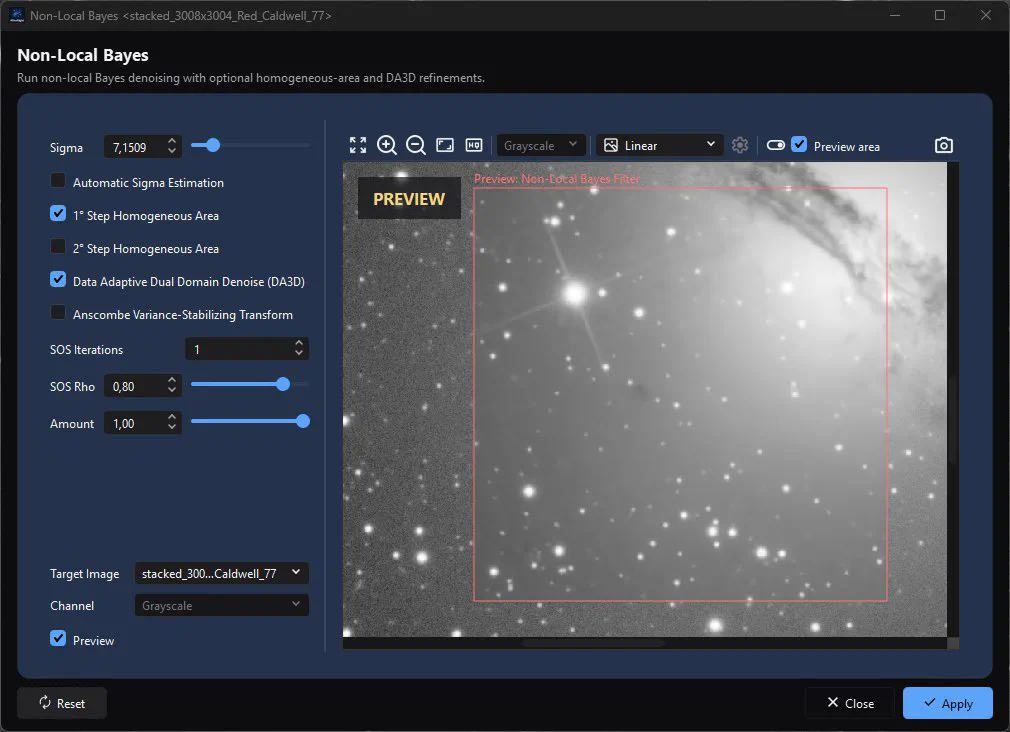
DeepSNR
DeepSNR sends the selected image through the separately installed DeepSNR command-line tool, then replaces that image with the denoised result.
SequencesNeeds an external tool
- Menu
- Process > Noise Reduction > DeepSNR
- Image state
- A high-quality calibrated and integrated image with mostly random high-frequency noise. Enable Pre-Stretch linear image for a linear source when DeepSNR benefits from a visible nonlinear handoff; leave it disabled for an already stretched source. AfterNight trusts this manual choice rather than inspecting the recorded processing state.
- Preview
- None. There is no RT or full-image preview and no strength/blend control. OK runs the complete external process and changes the target only after the program exits normally and its output loads.
- Masks
- Unsupported. DeepSNR neither reads nor post-blends the image-view mask. Duplicate or blend results later if the effect must be localized.
- Sequences
- Yes. Over a sequence view every frame - demosaiced when the view demosaics its frames - is handed to the program in turn, written into a new sequence that is published whole or not at all, and shown in the view as one DeepSNR history step. The progress window counts the frames and its Cancel stops the run. Extract a frame first when only one frame is wanted.
- Needs
- DeepSNR CLI 1.2.0 or newer, its compatible model weights, package-local runtime libraries, and acceptance of the DeepSNR software license. Network access is needed only to obtain the package; AfterNight runs it locally. Current upstream packages use ONNX Runtime on Windows/Linux/Intel macOS and CoreML on Apple Silicon.
Wavelet Denoise
Wavelet Denoise reduces low-amplitude structure by decomposing the image into decimated Haar-wavelet coefficients, soft-thresholding them relative to a robust noise estimate, reconstructing the image, and averaging several randomly shifted repetitions.
Live previewMask-awareSequences
- Menu
- Process > Noise Reduction > Wavelet Denoise Filter
- Image state
- Usually linear or early nonlinear, after calibration/registration/stacking and before a strong stretch amplifies noise; valid on nonlinear data when judged in that state
- Preview
- Asynchronous RT preview using the same G'MIC command and Amount/mask blend as Apply; a selectable preview area and display-only autostretch are available
- Masks
- Supported for preview, still Apply, and sequence Apply by post-filter blending; white applies, black protects, gray blends, and Invert Mask reverses weights
- Sequences
- Supported by the generic temporary replacement-sequence path with per-frame processing, progress, and cooperative cancellation; configured CFA auto-debayer can produce RGB frames
- Needs
- Bundled G'MIC 3.5.4 command denoise_haar, run through AfterNight's optional G'MIC adapter; no separate installation, model, catalog, or network service. In a build without G'MIC, Preview and Apply are disabled and their tooltip says why
Total Variation Denoise
Total Variation Denoise seeks a piecewise-smooth image while penalizing departure from the source.
Live previewMask-awareSequences
- Menu
- Process > Noise Reduction > Total Variation Denoise Filter
- Image state
- Usually linear or early nonlinear, after calibration/registration/stacking and before a strong stretch; also valid later when judged in that state
- Preview
- Asynchronous RT preview using the same solver and mask path as Apply; a selectable preview area and display-only autostretch are available
- Masks
- Supported for preview, still Apply, and sequence Apply by post-solver blending; white applies, black protects, gray blends, and Invert Mask reverses weights
- Sequences
- Supported by the generic temporary replacement-sequence path with per-frame processing, progress, and cooperative cancellation at every solver iteration; configured CFA auto-debayer can produce RGB frames
- Needs
- None; AfterNight's engine solves both methods natively. No Python interpreter, no scikit-image, and no global lock: Total Variation runs alongside other processes
NL-Bayes
NL-Bayes reduces noise by finding nearby patches with similar structure, estimating a local Gaussian model for each patch group, and aggregating two Bayesian estimates.
Live previewMask-awareSequences
- Menu
- Process > Noise Reduction > Non-Local Bayes Filter
- Image state
- Usually linear, after calibration/registration/stacking and gradient/color correction but before stretching; normalize deliberately when manual Sigma or Anscombe assumptions are used
- Preview
- Asynchronous RT preview with the same captured parameters, channel conversion, Amount, and mask blend as Apply; selected-area preview and display-only autostretch are available
- Masks
- Supported after denoising for preview, still Apply, and sequence Apply; white applies, black protects, gray blends, and Invert Mask reverses weights
- Sequences
- Supported through the generic temporary replacement-sequence path with per-frame processing, progress, and cooperative cancellation; configured CFA auto-debayer can produce RGB frames
- Needs
- None; the AfterNight engine's own patch denoiser, carried over from the published NL-Bayes and DA3D implementations; no separate installation, model, catalog, or network service
Patch PCA Denoise
Patch PCA Denoise reduces noise with a local, patch-based principal-component filter.
Live previewMask-awareSequences
- Menu
- Process > Noise Reduction > Patch PCA Denoise Filter
- Image state
- Usually a finite, normalized linear master after calibration, registration, stacking, gradient correction, and color calibration but before stretching
- Preview
- Asynchronous RT preview with the same captured parameters, channel conversion, and mask blend as Apply; selected-area preview and display-only autostretch are available
- Masks
- Supported after denoising for preview, still Apply, and sequence Apply; white applies, black protects, gray blends, and Invert Mask reverses weights
- Sequences
- Supported through the generic temporary replacement-sequence path with per-frame processing, progress, and cooperative cancellation; configured CFA auto-debayer can produce RGB frames
- Needs
- Bundled G'MIC 3.5.4 command denoise_patchpca, run through AfterNight's optional G'MIC adapter; no separate model, catalog, network service, or installation. In a build without G'MIC, Preview and Apply are disabled and their tooltip says why
Bilateral Filter
Bilateral Filter performs one local, nonlinear smoothing pass whose weight for a neighbor depends on both pixel distance and sample-value difference.
Live previewMask-awareSequences
- Menu
- Process > Filters > Bilateral Filter
- Image state
- Usually a finite, normalized linear master after calibration, registration, stacking, gradient correction, and color calibration; use a deliberate luminance component if independent chromatic smoothing is undesirable
- Preview
- Asynchronous full-image or movable-area preview, original/result switching, snapshot, display-channel selection, and display-only autostretch; with no area drawn, a slider held runs on the part the preview view shows at the image's own scale, its window's reach around it, exactly the pixels Apply writes there
- Masks
- Yes; the active mask blends the filtered result with the original after Amount blending
- Sequences
- Yes; one captured parameter/channel/mask state is applied frame by frame to temporary storage before replacement
- Needs
- None; the AfterNight engine's own bilateral filter, held to OpenCV's cv::bilateralFilter - its circular window, radius rule, and reflecting border; no separate user installation or network access
Gaussian Blur
Gaussian Blur applies a linear, isotropic low-pass filter.
Live previewMask-awareSequences
- Menu
- Process > Details > Gaussian Blur or Process > Filters > Gaussian Blur; both entries are the same action
- Image state
- Any finite image or mask whose fine structure should be softened; for a science master, prefer linear data and protect stars/edges with a mask when their flux profile matters
- Preview
- Asynchronous preview by default: the exact Gaussian over what the preview view shows while a slider is held - the image reduced, blurred by Sigma over the reduction, or the shown part at 1:1 and closer - and over the whole image once it settles; optional movable Preview area, original/result switching, snapshot, display-channel selection, and display-only autostretch
- Masks
- Yes; the active mask blends the blurred result with the original
- Sequences
- Yes; one captured Sigma/channel/mask state is applied frame by frame to temporary storage before replacement
- Needs
- None; the blur is the AfterNight engine's own, with no separate installation, model, or network access
Median Filter
Median Filter replaces each sample with the median order statistic of a square neighborhood, then blends that median with the current sample by Modulation.
Live previewMask-awareSequences
- Menu
- Process > Filters > Median Filter
- Image state
- A calibrated image with sparse impulse defects, or a mask that needs deliberate order-statistic cleanup; inspect stars and thin structures at 100%
- Preview
- Asynchronous full-image or movable-area preview, original/result switching, snapshot, display-channel selection, and display-only autostretch; with no area drawn, a slider held runs on the part the preview view shows at the image's own scale, its window's reach around it, exactly the pixels Apply writes there
- Masks
- Yes; the active mask blends the fully filtered result with the original after channel reconstruction
- Sequences
- Yes; one captured kernel/iteration/modulation/channel/mask state is applied frame by frame to temporary storage before replacement
- Needs
- None; the AfterNight engine's own order-statistic filter, using fixed sorting networks or a general rank selection, on the operation's granted threads
GRAYCstoration
GRAYCstoration performs edge-directed smoothing through the bundled G'MIC smooth command.
Live previewMask-awareSequences
- Menu
- Process > Noise Reduction > GRAYCstoration Filter
- Image state
- Usually finite, normalized linear data after calibration, registration, stacking, gradient correction, and color calibration; judge any small-star loss at 100% scale
- Preview
- Asynchronous full-image or movable-area preview, original/result switching, snapshot, display-channel selection, and display-only autostretch
- Masks
- Yes; the active mask blends the result with the original after Amount blending
- Sequences
- Yes; one captured parameter/channel/mask state is applied frame by frame to temporary storage before replacement
- Needs
- Bundled G'MIC/CImg runtime, run through AfterNight's optional G'MIC adapter; no separate installation or network access. In a build without G'MIC, Preview and Apply are disabled and their tooltip says why
Banding Reduction
Banding Reduction measures the median of every row and adds one constant correction to every sample in that row.
Live previewMask-awareSequences
- Menu
- Process > Filters > Banding Reduction Filter
- Image state
- Finite, normalized linear data after calibration, before stretching; first verify that the apparent bands are fixed row/column offsets rather than gradients, walking noise, or residual calibration structure
- Preview
- Asynchronous full-image or movable-area preview, original/result switching, snapshot, display-channel selection, and display-only autostretch
- Masks
- Yes; an active mask blends the corrected result with the original and is the only current way to protect selected output pixels
- Sequences
- Yes; one captured parameter/channel/mask state is applied frame by frame to temporary storage before replacement
- Needs
- None; the AfterNight engine's own banding suppression and exact median, with no separate user installation or network access
Sharpening
6 processesUnsharp Mask
Unsharp Mask enhances local transitions by subtracting a Gaussian-blurred copy from the source and adding a scaled version of that detail back.
Live previewMask-awareSequences
- Menu
- Process > Details > Unsharp Mask
- Image state
- Usually a finite, normalized nonlinear working copy for final-scale detail; linear use is possible when noise is controlled and scale/amount are tested deliberately
- Preview
- Asynchronous full-image or movable-area preview, original/result switching, snapshot, display-channel selection, and display-only autostretch
- Masks
- Yes; the active mask blends the clipped/reconstructed filter result with the original after filtering
- Sequences
- Yes; Radius, Amount, and Channel are captured once when Apply starts and used for every frame; temporary output replaces the sequence only after success
- Needs
- None; the AfterNight engine's own detail filter. No Python interpreter, scikit-image, global lock, separate installation, or network access
Sharpen Alpha
Multiscale Sharpen Alpha decomposes the selected image or component into opacity-weighted detail layers at successively broader scales, increases the opacity of those layers, and alpha-composites them back over the residual base.
Live previewMask-awareSequences
- Menu
- Process > Details > Multiscale Alpha Sharpen; window title Multiscale Sharpen Alpha
- Image state
- Usually finite, normalized data after calibration, registration, stacking, gradient correction, color calibration, and noise reduction; test final-scale sharpening on a duplicate
- Preview
- Asynchronous full-image or movable-area preview, original/result switching, snapshot, and display-channel selection; this process currently exposes no Display Mode or Autostretch Settings controls
- Masks
- Yes; the active mask blends the Amount-modulated result with the original after filtering
- Sequences
- Yes; numerical parameters and Channel are captured once when Apply starts and used for every frame; temporary output replaces the sequence only after success
- Needs
- Bundled G'MIC 3.5.4/CImg runtime, run through AfterNight's optional G'MIC adapter; no separate installation or network access. In a build without G'MIC, Preview and Apply are disabled and their tooltip says why
High Pass Filter
High Pass Filter replaces the target with a neutral-centered detail layer.
Live previewMask-awareSequences
- Menu
- Process > Details > High Pass; window title High Pass Filter
- Image state
- Finite, normalized data after calibration/registration/stacking and noise control; duplicate the target because the output is a layer, not the original plus detail
- Preview
- Full-image preview initially; optional movable 600×600 Preview area when enabled, original/result switching, histogram, snapshot, and display-channel selection; no Display Mode or Autostretch Settings
- Masks
- Yes, but it crossfades the original and the neutral detail layer; it does not perform masked sharpening
- Sequences
- Yes; one captured Radius and mask state is applied frame by frame to temporary storage, with frame progress and Cancel, before replacement
- Needs
- None; the AfterNight engine's own detail filter; no Python, G'MIC, network, or separate installation
Local Contrast Enhancement
Local Contrast Enhancement applies a high-radius unsharp-mask-style transform.
Live previewMask-awareSequences
- Menu
- Process > Details > Local Contrast Enhancement
- Image state
- Usually a finite, normalized nonlinear working copy after noise reduction and global stretch; use on linear data only with deliberate low settings and matched display conditions
- Preview
- Asynchronous movable-area preview, original/result switching, snapshot, display-channel selection, and a separate source/result histogram; no execution autostretch
- Masks
- Yes; the active mask blends the Amount-mixed result with the original after filtering
- Sequences
- Yes; numeric parameters and process Channel are captured once when Apply starts, CFA frames can be auto-debayered first, and temporary output replaces the sequence only after success
- Needs
- Bundled G'MIC 3.5.4/cgmic, run through AfterNight's optional G'MIC adapter, with Arto Huotari's fx_LCE definitions built into the process; no separate installation, script file, or network access. In a build without G'MIC, Preview and Apply are disabled and their tooltip says why
Local Histogram Equalization
Local Histogram Equalization remaps each pixel through a cumulative distribution function (CDF) built from that pixel's own neighborhood.
Live previewMask-awareSequences
- Menu
- Process > Intensity Transformations > Local Histogram Equalization
- Image state
- Finite normalized nonlinear working copy after noise reduction; local CDF remapping is normally a post-stretch contrast operation
- Preview
- Asynchronous movable-area preview, original/result switching, snapshot, display-channel selection, and separate source/result histogram; no execution autostretch
- Masks
- Yes; active mask blends the Amount-mixed result with the original after local equalization
- Sequences
- Yes; numeric/checkbox parameters and process Channel are captured once when Apply starts, CFA frames can be auto-debayered first, and temporary output replaces the sequence only after success
- Needs
- Bundled G'MIC 3.5.4/cgmic standard library, run through AfterNight's optional G'MIC adapter; no separate installation, model, file, or network access. In a build without G'MIC, Preview and Apply are disabled and their tooltip says why
CLAHE
CLAHE means contrast-limited adaptive histogram equalization.
Live previewMask-awareSequences
- Menu
- Process > Intensity Transformations > CLA Histogram Equalization; the process window is titled CLAHE
- Image state
- Usually a finite, normalized nonlinear working copy after noise reduction and global stretch; linear data can suffer severe background/noise remapping
- Preview
- Asynchronous movable-area preview, original/result switching, snapshot, display-channel selection, and a separate source/result histogram; no execution autostretch
- Masks
- Yes; the active mask blends the Amount-mixed result with the original after CLAHE
- Sequences
- Yes; numeric parameters and process Channel are captured once when Apply starts, CFA frames can be auto-debayered first, and Cancel stops the current frame's equalization
- Needs
- None; the AfterNight engine's own adaptive histogram equalization; no OpenCV call, network access, or optional plugin
Background extraction
2 processesAuto Gradient Removal
Auto Gradient Removal estimates an uneven large-scale background without a sample grid, then subtracts or divides that model from a still image.
- Menu
- Process > Background Modelization > Auto Gradient Removal
- Image state
- A calibrated, registered, linear master before color calibration and stretch. The process does not enforce linearity and does not record the corrected image as nonlinear.
- Preview
- On request. The preview shows the unchanged target until Preview is clicked, then the corrected image, gradient model, or protection mask of the whole image. Any setting change returns it to the target. Preview-area selection is disabled.
- Masks
- The model is always estimated without the image-view mask. An enabled mask, including inversion, is blended into every computed preview display and into the corrected target on Apply. The gradient and protection views created by Apply are not masked.
- Sequences
- Unsupported. A run on a sequence is refused with an error saying the process works on a still image.
- Needs
- None for the user. The background estimate is built into AfterNight.
Background Extraction
Background Extraction lets you choose background samples, fit a smooth surface, and subtract or divide that surface from an image.
Mask-awareSequences
- Menu
- Process > Background Modelization > Background Extraction
- Image state
- Calibrated, registered, stacked, cropped, and still linear. The process does not enforce linearity and does not mark its result nonlinear.
- Preview
- On request. The preview pane shows the unprocessed target until you click Preview; it then shows the corrected image or the fitted model (Preview Display), computed by the same steps as Apply. The preview always shows the whole image, because the samples are positions over the whole image; no preview area is offered. Changing the samples, Interpolation Method, Smoothing, Correction, or the target marks the preview out of date until Preview is clicked again.
- Masks
- An enabled image-view mask does not affect sampling or fitting; the standard process framework blends the preview or Apply result with the source through it. Mask inversion is honored. The opened model view is not blended.
- Sequences
- Supported by the standard process framework. One sample-position set is used for every frame; each frame's channel medians are measured from that frame and its own surface is fitted. The whole processed sequence is published, or nothing. Model-image output is not published for sequences.
- Needs
- None for the user. The bundled engine computes the fits itself and runs the per-pixel work on oneTBB.
Star operations
7 processesStar Mask
Star Mask finds the stars of one image, or of every sequence frame, with AfterNight's fitted star detector and paints them into a new single-channel grayscale mask.
Live previewSequences
- Menu
- Process > Mask Generation > Star Mask
- Image state
- A calibrated linear or consistently prepared star field; clipping, strong gradients, hot pixels, blur, and prior nonlinear processing change detection and measured widths
- Preview
- Asynchronous preview of the mask over the whole image or an initial centered 600×600 Preview area, original/result switching, snapshot, display-channel selection, and display-only Linear/Autostretch
- Masks
- No. An active image mask is deliberately ignored because this process creates a mask rather than blending a correction through one
- Sequences
- Yes; one captured parameter set is applied frame by frame into a new temporary sequence, with frame progress and Cancel
- Needs
- None; the detector and the mask painter are built into AfterNight
Starnet++
Starnet++ sends the current image, or every frame of the current sequence, through a separately installed StarNet2 CLI 2.5.3 or newer.
SequencesNeeds an external tool
- Menu
- Process > Star Processing > Starnet++
- Image state
- A calibrated, registered, integrated linear master with Pre-Stretch linear image on; for already nonlinear data, leave it off
- Preview
- Not available. OK starts the external run directly
- Masks
- Ignored; the full current image is sent to StarNet2. Only a pixel the image's own validity rule rejects is handed as zero
- Sequences
- Every frame is handed to StarNet2 in turn, demosaiced first when the view demosaics its frames; each requested output becomes a new sequence, published whole and opened beside the target; the progress window counts the frames
StarNet++ Star Mask
StarNet++ Star Mask hands the current image, or every frame of the current sequence, to a separately installed StarNet2 CLI 2.5.3 or newer and opens the program's own star mask as a new view beside the target.
SequencesNeeds an external tool
- Menu
- Process > Mask Generation > Starnet++ Star Mask
- Image state
- A calibrated, registered, integrated linear master with Pre-Stretch linear image on; leave it off for already nonlinear input
- Preview
- None. OK starts the external run directly
- Masks
- The target's active AfterNight mask is ignored. This process creates a mask image; it does not attach that image to the source
- Sequences
- Every frame is handed to the program in turn, demosaiced when the view demosaics its frames; the masks are written into a new sequence that is published whole and opened beside the target. The progress window counts the frames
- Needs
- Official StarNet2 CLI and model/runtime package, version 2.5.3 or newer
Star Reduction
Star Reduction reduces stars in a target by comparing it with a geometrically matching starless version of the same image.
Live previewMask-awareSequences
- Menu
- Process > Star Processing > Star Reduction
- Image state
- Matching nonlinear target/starless pair. The process always marks results nonlinear; do not mix linear and stretched counterparts
- Preview
- Native real-time full/area preview (the target unchanged until a starless image is selected), original/result switching, snapshots, zoom/channel/display controls, and display-only execution autostretch
- Masks
- Supported through AfterNight's normal active-mask blend. Non-inverted white applies the reduction and black preserves the target; Invert reverses that. Initialise small star protection builds a grayscale mask in the background, then opens, attaches, enables, and hides it as a non-inverted mask
- Sequences
- Supported through a temporary output sequence that is published whole or not at all. The starless still and active mask taken when OK is clicked are used for every frame, and each frame is reduced as a still image of it would be; reduced-stars-only output is skipped
- Needs
- None for reduction. Generate starless view requires an available registered generator; native Starnet++ requires configured StarNet2 2.5.3+
Starmask Recombination
Starmask Recombination adds a stars-only image to a matching starless base.
Live preview
- Menu
- Process > Star Processing > Starmask Recombination
- Image state
- Matching nonlinear stills produced from the same registered target and kept at identical geometry and processing state
- Preview
- Full-frame asynchronous preview, display autostretch, zoom/channel/display controls, optional-mask result, and snapshots. Preview area crops the stars and the mask to the same area
- Masks
- Only the dialog's optional Mask input. Ordinary active target masks are disabled for this process. A one-channel mask weighs every channel and a mask with one channel per image channel weighs each channel by its own; a mask of another width, height, or channel count is refused
- Sequences
- Still images only: the suite holds still images, and a sequence is not an intended input
- Needs
- None
Profiled Starmask Recombination
Profiled Starmask Recombination adds a stars-only image to a matching starless base, then uses a saved Star Profiler v1 or v2 detection list to choose where that addition is visible.
Live preview
- Menu
- Process > Star Processing > Profiled Starmask Recombination
- Preview
- Full-frame asynchronous result, profile overlays, display autostretch, zoom/channel/display controls, and snapshots. Preview area crops the stars and the painted mask to the same area; Switch image shows the starless image
- Masks
- An internal mono profile mask only, painted by the engine: binary areas are each star's fitted ellipse scaled and softened by the exact Gaussian; shaped masks use the engine's star-mask shapes. Ordinary active target masks are not applied
- Sequences
- No true sequence output. OK always creates one still from the currently displayed selected images
- Needs
- None; a profile must already have been created or saved by Star Profiler
Dark Structure Enhance
Dark Structure Enhance builds a grayscale mask of the places darker than their own multiscale surroundings, applies a darkening midtones transfer through that mask, and can open the mask as a separate image.
Sequences
- Menu
- Process > Details > Dark Structure Enhance. The window is titled DarkStructureEnhance followed by the target's name in angle brackets
- Preview
- On by default with a centered 800 x 800 Preview area, clipped to the image. Processed image or Generated mask modes, display autostretch, snapshots, and original/result switching are available; the Processed image Preview is what Apply writes
- Sequences
- Every frame is processed as Apply processes a still image of it, into a temporary sequence that replaces the selected sequence only on success; the view's auto-debayer setting and Cancel apply
- Needs
- None; bundled AfterNight engine only
Colour composition
6 processesChannel Composition
Channel Composition creates a new three-channel RGB view from up to three open monochrome views.
Sequences
- Menu
- Process > Color Spaces > Channel Composition
- Image state
- RGB: registered, cropped, calibrated linear masters with comparable background/scale. Other modes: component planes produced with AfterNight's matching normalized encoding; their RGB result is treated as nonlinear.
- Preview
- None. There is no preview pane or preview action; OK runs the full composition.
- Masks
- Unsupported. Active view masks are neither read nor blended.
- Sequences
- Implemented for compatible grayscale sequences, frame by frame on a worker, with a progress dialog whose Cancel stops the run; a frame missing from a shorter sequence is a zero plane; the sequence is published whole or not at all.
- Needs
- None. Conversion uses the engine's colour transforms; Linear Match is the engine's normalization scaling match.
LRGB Combination
LRGB Combination replaces the CIE L\* lightness of an RGB target with, or blends it toward, a same-size grayscale luminance image.
Live previewMask-awareSequences
- Menu
- Process > Color Spaces > LRGB Combination
- Image state
- Geometrically aligned, normalized sources prepared consistently for the sRGB/D65 CIE conversion; the process does not enforce or convert an ICC profile or processing state
- Preview
- Always-on asynchronous full-image preview with histogram and display autostretch; Preview area is supported, the luminance cropped to the same area
- Masks
- Supported after combination: white applies the result, black keeps the RGB target, gray blends, and Invert Mask reverses the weights
- Sequences
- Framework-supported. Apply captures the luminance image from its view once, and every target frame is combined with it as a still image of the frame would be; there is no frame pairing or luminance-sequence traversal
- Needs
- None; execution uses the bundled engine and does not access a tool, model, catalog, or network service
NBRGB Combination
NBRGB Combination injects up to three registered monochrome narrowband masters into the corresponding red, green, and blue planes of a broadband RGB still.
Live preview
- Menu
- Process > Color Spaces > NBRGB Combination
- Image state
- Registered, consistently calibrated linear masters with meaningful effective bandwidths and compatible intensity scales
- Preview
- Always-on asynchronous preview with histogram and display autostretch; starts with a centered Preview area of up to 512 x 512 pixels
- Masks
- Not applied: the result is a new image, not an edit of the target
- Sequences
- Not supported: the registered action needs a still image, and a sequence run is refused by name
- Needs
- None; the bundled engine performs the calculation without a tool, model, catalog, or network service
NB Color Mapper
NB Color Mapper prepares any number of same-size mono or RGB stills as layers, optionally colorizes mono layers with an HSV hue and saturation, and combines the included layers with an N-layer screen blend.
Live preview
- Menu
- Process > Color Spaces > NB Color Mapper
- Image state
- Registered, cropped, calibrated linear masters with gradients and gross scale differences corrected upstream
- Preview
- Always-on asynchronous preview with histogram, pixel-changing Preview STF, and separate viewer display autostretch; starts on the full image with Preview area unchecked
- Masks
- Not applied: the result is a new image, not an edit of the active view
- Sequences
- Not supported: the registered action needs still images, and a sequence run is refused by name
- Needs
- No runtime external tool, model, catalog, or network service; the native port's source lineage is recorded under References and provenance
Narrowband Palette Composer
Narrowband Palette Composer prepares selected Ha, OIII, SII, and optional OSC stills, calculates 12 fixed palette formulas, and presents them as a synchronized grid or a large single preview.
- Menu
- Process > Color Spaces > Narrowband Palette Composer
- Image state
- Registered/cropped linear masters with gradients corrected; leave Input autostretch on for linear data unless you intentionally prepared display-ready inputs
- Preview
- Automatic Palette Grid and Single Preview, built on a worker under an operation of their own once the inputs are chosen - the latest request wins and nothing older is shown; all 12 palettes at full resolution as 8-bit display conversions; no standard viewer/histogram/autostretch toolbar
- Masks
- Not supported; the process explicitly disables ordinary target masking
- Sequences
- Not supported by any source selector; no target sequence is needed to open the top-level window
- Needs
- No runtime tool, Python environment, model, catalog, or network service; SetiAstro lineage is recorded under References and provenance
Colorize
Colorize converts one grayscale or RGB target into a same-size RGB image using a selected Hue, Saturation, and either HSV Value or HSI Intensity.
Live previewMask-awareSequences
- Menu
- Process > Color Spaces > Colorize
- Image state
- Finite normalized data on a duplicate or reversible history state; normally use after physical calibration and color calibration because output is recorded nonlinear
- Preview
- Checked by default; asynchronous full-image linear display with histogram, optional Preview area, original/result switching, display-channel inspection, and snapshot; runs the same operation as Apply, CIE L* conversion included; no Display Mode or Autostretch Settings control
- Masks
- Yes; the shared post-process blend mixes original and colorized RGB by the active mask and inversion state
- Sequences
- Exposed and processed frame by frame through temporary storage; one captured parameter/mask state applies to every frame; Cancel stops the run and replaces nothing
- Needs
- None; HSV, HSI, CIE L*, masking, and sequence support are built into AfterNight
Geometry
4 processesCrop
Crop replaces one image, or every frame of a sequence, with the rectangular pixel region defined by a zero-based top-left position and a width and height.
Sequences
- Menu
- Process > Geometry > Crop
- Image state
- Any linear or nonlinear state; for registered stacks, choose one common rectangle before downstream geometry-sensitive work
- Preview
- No processed preview; the image viewer shows and moves the crop rectangle before OK
- Masks
- No; an active image mask is not applied
- Sequences
- Yes: every frame, whatever frames the player has selected, with one rectangle; progress and Cancel are shown
- Needs
- None
Resize
Resize changes the pixel-grid dimensions of one image or every frame in a sequence.
Sequences
- Menu
- Process > Geometry > Resize
- Image state
- Any state; prefer calibrated/registered linear data for scientific resampling and a duplicate for display-size experimentation
- Preview
- No processed preview; dimension and memory estimates update before OK
- Masks
- No; active masks are not applied
- Sequences
- Yes: every frame, whatever frames the player has selected, with one size and interpolation; progress and Cancel are shown
- Needs
- None; the resize is the image engine's own
Rotate
Rotate turns an image, or every frame of a sequence, clockwise or counter-clockwise about its centre by up to 180 degrees, optionally grows the canvas to hold every turned pixel, and can crop the turned result.
Sequences
- Menu
- Process > Geometry > Rotate
- Image state
- Any state; prefer demosaiced data and perform scientific rotation only when geometry requires it
- Preview
- Yes, but display-only: the viewer rotates its current display, stretch and mask overlay; the engine's interpolation and border are not computed until OK
- Masks
- No for output; an active mask may appear in the display-only rotated preview but is not applied
- Sequences
- Yes: every frame, whatever frames the player has selected, with one angle, canvas, interpolation and crop; progress and Cancel are shown
- Needs
- None; the rotation is the image engine's own
Integer Resample
Integer Resample changes image dimensions by a whole-number factor.
Sequences
- Menu
- Process > Geometry > Integer Resample
- Image state
- Any state; use calibrated linear data for noise reduction and a duplicate for display/pixel-art enlargement
- Preview
- No processed preview; dimensions and sample estimates update before OK
- Masks
- No; active masks are not applied
- Sequences
- Yes: every frame, whatever frames the player has selected, with one direction, factor and reducer; progress and Cancel are shown
- Needs
- None
Pixel math
1 processPixel Math
Pixel Math evaluates a small expression language once for every output sample.
Sequences
- Menu
- Process > Pixel Math > Pixel Math
- Image state
- Use linear inputs for signal arithmetic when appropriate; every Pixel Math result is recorded nonlinear whatever the formula.
- Preview
- None. Apply performs the full image or sequence operation.
- Masks
- Explicit only through $M. An attached mask is not blended automatically.
- Sequences
- Yes. $T follows the target's frames; other named images, $A and $M are the images their views showed when Apply was pressed.
- Needs
- None
Analysis
3 processesImage Compare
Image Compare is a non-destructive inspection window for comparing two open images at the same pixel coordinates.
- Menu
- Process > Utilities > Image Compare
- Image state
- Any state is accepted. Compare like with like: use the same processing state, registration, crop, display channel, zoom, and display mode when interpreting differences.
- Preview
- Always-on private comparison view. Toggle and split modes operate in that view: in a split, Image 2 is presented by the engine on a worker exactly as the view presents Image 1 - the same display mode, stretch, balance and channel - and shown once it lands. There is no Apply action, but the shared toolbar can create an Image 1 snapshot.
- Masks
- None. Active masks are not applied to either comparison image.
- Sequences
- A sequence view can be Image 1, but Image 2 is the other view's current image. There is no synchronized frame pairing or sequence output.
- Needs
- None.
Image Blend
Image Blend combines a base image A with a same-size blend image B using one of 27 pixel or color-component modes.
Live previewMask-awareSequences
- Menu
- Process > Utilities > Image Blend
- Image state
- Depends on intent. Arithmetic combination of calibrated linear data can be meaningful, but the process always marks a successful result nonlinear. Contrast/color modes, input MTFs, and color filters are normally nonlinear operations.
- Preview
- Checked by default; asynchronous full-image preview with histogram, original/result switch, display autostretch, and snapshots. Preview area is supported: the second image is cropped to the same area.
- Masks
- Yes. The active base mask is applied after mode and opacity: ordinary mask white selects the processed result, black keeps the original; inversion reverses this.
- Sequences
- Applies each base-sequence frame against the second image taken from its view when Apply is clicked; every frame is blended as a still image of it would be. There is no paired-frame synchronization.
- Needs
- None. Gaussian Blur and High Pass are the engine's exact Gaussian, at any radius; Hue and Color are the engine's colourizing filters.
Range Selection
Range Selection creates a new mask image from an inclusive normalized intensity interval.
Live previewSequences
- Menu
- Process > Mask Generation > Range Selection
- Image state
- A finite image whose range of interest is already on the intended normalized scale; there is no automatic normalization, background measurement, or threshold estimator
- Preview
- Asynchronous full-image preview computed exactly as OK computes it, display autostretch, original/result switch, snapshot, zoom, display-channel selection, and Preview area, which shows the mask of the area alone over the image
- Masks
- None: an enabled mask on the target weighs no preview, snapshot, OK result, or sequence frame, so the result is always the pure range mask
- Sequences
- Supported: every output frame is computed from its own source frame and written to a new temporary sequence in the target's container
- Needs
- None for the user; the selection and the Gaussian are part of AfterNight's engine
Masking
3 processes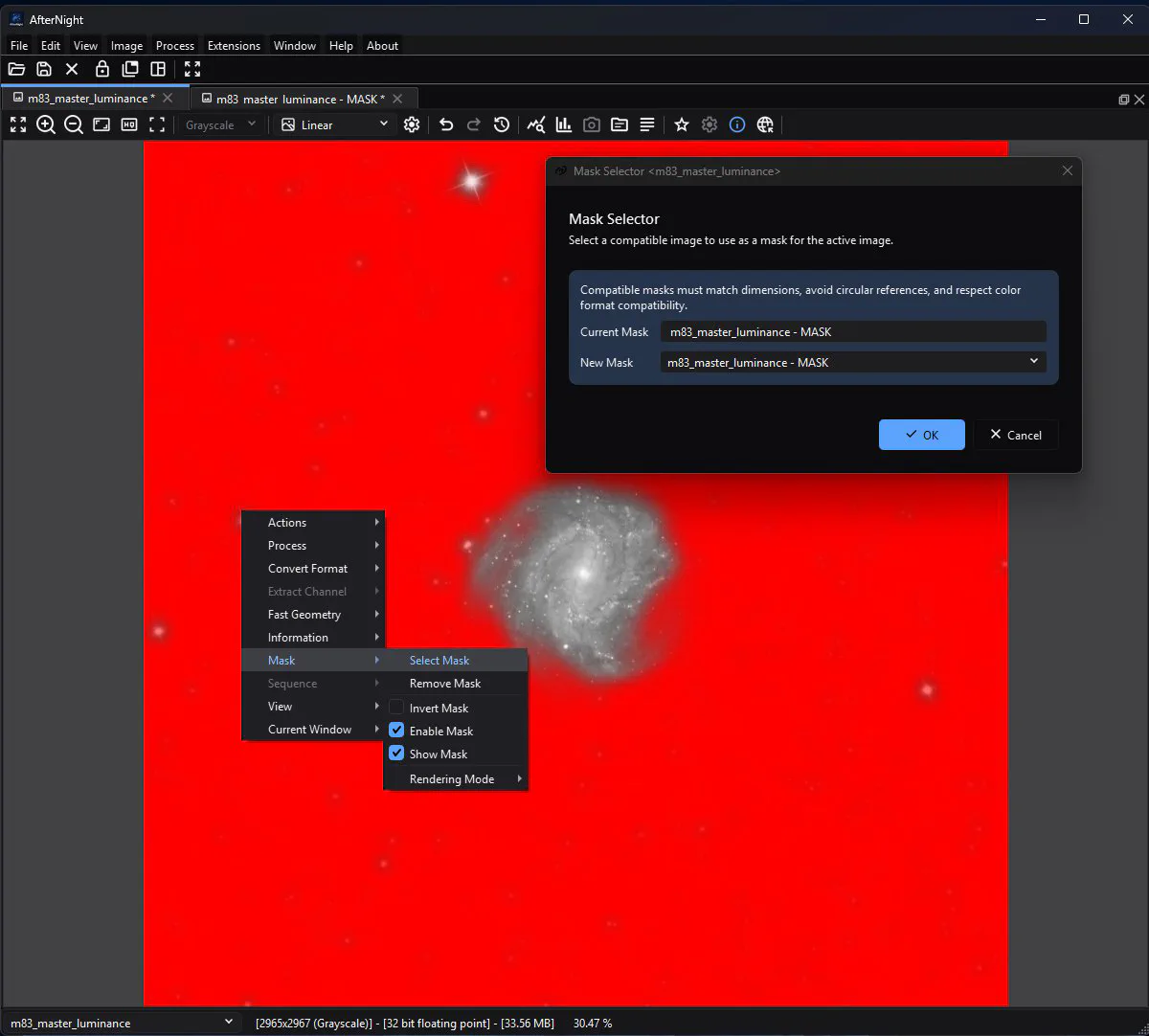
Mask Drawing
Mask Drawing is an interactive editor for building a grayscale mask over the RT preview of an open image.
Live preview
- Menu
- Process > Mask Generation > Mask Drawing
- Image state
- Any displayable target whose geometry matches the intended mask; linearity does not change mask construction, but judge the overlay under a stable display stretch
- Preview
- Required RT preview: the preview shows the target, and the editable drawing is painted over it as a separate overlay; the checked Preview control is disabled
- Masks
- The process does not consume the target's active mask; the generated image is not assigned automatically
- Sequences
- OK writes a new sequence named <target> - MASK in which every frame is the same drawing in that frame's representation; no focused test runs this process over a sequence
- Needs
- None; import/export uses AfterNight's installed image codecs
Binarize
Binarize applies an inclusive hard threshold to each stored channel.
Live previewMask-awareSequences
- Menu
- Process > Intensity Transformations > Binarize
- Image state
- A duplicate mask or classification image whose meaningful threshold is known; linearity does not change the transfer, but nonlinear/display-stretched data has different scientific meaning
- Preview
- Asynchronous preview that runs the same threshold as Apply over the target, or over the Preview area; display mode follows the target view; original/result switch, snapshot, zoom, and display-channel selection
- Masks
- Active target mask post-blends source and binary result for Preview, snapshot, still Apply, and sequence Apply; white applies, black protects, gray blends, and Invert Mask reverses weights
- Sequences
- Every frame is processed as Apply processes a still image of it, into a temporary replacement sequence, with per-frame progress and Cancel; the target is replaced only after every frame succeeds
- Needs
- None; bundled AfterNight engine only
Morphological Transformation
Morphological Transformation changes the spatial extent of bright or dark structures by replacing each sample with a local minimum or maximum - or, with Morphological Selection, any rank between them.
Live previewMask-awareSequences
- Menu
- Process > Morphology > Morphological Transformation
- Image state
- Work on a duplicate grayscale/binary mask with no active mask. Linear or nonlinear science images are accepted, but morphology is destructive and derived-channel reconstruction can change colors.
- Preview
- Asynchronous RT preview, compatible Preview area, original/result switch, snapshot, zoom, display autostretch, and display-channel selection
- Masks
- Supported: after morphology and Amount blending, the shared framework blends the original and result through the target's enabled active mask
- Sequences
- Supported through a temporary replacement sequence with generic progress; source metadata is kept per frame, and Cancel reaches the morphology running on the current frame
- Needs
- None; the AfterNight engine's own morphology and structuring-element rank filter
Multiscale
1 processMultiscale Linear Transform
Multiscale Linear Transform separates an image into detail layers plus a coarse residual, changes selected layers, and reconstructs the image.
Live previewMask-awareSequences
- Menu
- Process > Multiscale > Multiscale Linear Transform
- Image state
- A duplicate linear image for noise/detail work. LSTF and DRE are nonlinear display/range operations; derived color components can change reconstructed RGB colors.
- Preview
- Asynchronous processed preview that runs what Apply runs (over the Preview area, what Apply makes of that area), three selected-layer diagnostic modes, Linear Mask display, original/result switch, snapshot, zoom, autostretch, and display-channel selection. Global Amount and the active target mask post-blend every preview mode, including layer and mask diagnostics.
- Masks
- Two distinct masks: Linear Mask weights thresholding inside the transform; the target's active mask blends the final result afterward, together with global Amount
- Sequences
- Every frame is processed as Apply processes a still image of it, into a temporary replacement sequence, with progress and Cancel; settings are captured once for the run; deringing maps are not made for sequence frames
- Needs
- None outside the deployed application; the transform is the bundled AfterNight engine's, and the window's layer arithmetic runs as engine PixelMath programs on the threads the run is granted
Colour adjustment
5 processesAdjust HSL
Adjust HSL rotates hue, scales saturation, and offsets HSL lightness for every pixel of an RGB image.
Live previewMask-awareSequences
- Menu
- Process > Adjustments > Hue/Saturation/Lightness
- Image state
- Nonlinear display data after color calibration and the main stretch; the process marks committed output nonlinear
- Preview
- Asynchronous preview that runs the same adjustment as Apply over the target, or over the Preview area; fixed linear display, histogram, original/result switch, Preview area, and snapshot
- Masks
- Active target mask post-blends source and transformed result for Preview, snapshot, still Apply, and sequence Apply; white applies, black protects, gray blends, and Invert Mask reverses weights
- Sequences
- Every decoded frame is processed as Apply processes a still image of it, into a temporary replacement sequence, with per-frame progress and Cancel; every decoded frame must be RGB unless configured automatic CFA debayer supplies RGB
- Needs
- None; bundled AfterNight engine only
Adjust LCh
Adjust LCh converts the current stored RGB values to CIE L*C*h°, adds to lightness and hue, scales chroma, then converts back to RGB.
Live previewMask-awareSequences
- Menu
- Process > Adjustments > Lightness/Chroma/Hue
- Image state
- Nonlinear RGB after color calibration and the main stretch; committed output is marked nonlinear
- Preview
- Asynchronous preview that runs the same conversion and adjustment as Apply over the target, or over the Preview area; fixed linear display, histogram, original/result switch, Preview area, and snapshot
- Masks
- Active mask post-blends source/result for Preview, snapshot, still Apply, and sequence Apply; white applies, black protects, gray blends, Invert Mask reverses weights
- Sequences
- Every decoded frame is processed as Apply processes a still image of it, into a temporary replacement sequence, with per-frame progress and Cancel; decoded frames must be RGB unless automatic CFA debayer supplies RGB
- Needs
- None; the conversion is implemented in the bundled engine
Adjust Brightness/Contrast
Adjust Brightness/Contrast first adds a fixed normalized offset, clamps it, then expands or compresses values around a 0.5 pivot and clamps again.
Live previewMask-awareSequences
- Menu
- Process > Adjustments > Brightness/Contrast
- Image state
- Nonlinear display data after the main stretch; every Apply result is recorded nonlinear
- Preview
- Exact (runs Apply's own program), histogram, original/result switch, Preview area, snapshot, fixed-linear display
- Masks
- Active mask post-blends source/result; white applies, black protects, gray blends, inversion reverses weights
- Sequences
- Temporary replacement sequence with progress and Cancel; automatic CFA debayer may change decoded frame format
- Needs
- None; bundled engine
Color Saturation
Color Saturation multiplies HSL saturation globally or inside one fixed hue interval, while optionally leaving dark pixels unchanged.
Live previewMask-awareSequences
- Menu
- Process > Intensity Transformations > Color Saturation
- Image state
- Nonlinear display data after color calibration and the main stretch; every committed result is recorded nonlinear, including an identity-looking Apply
- Preview
- Asynchronous same-type RGB Preview running the Apply's own operation, fixed linear display, histogram, original/result switch, selectable Preview area, and snapshot
- Masks
- Active target mask post-blends source and transformed result for Preview, still Apply, and sequence Apply; white applies, black protects, gray blends, and Invert Mask reverses weights
- Sequences
- Generic temporary replacement-sequence path with progress and Cancel; each frame is processed as an Apply processes a still image, so the background threshold is recomputed per frame; the target is replaced only when every frame succeeds
- Needs
- None; bundled AfterNight engine only
Tighten Edges
Tighten Edges darkens samples in proportion to a fixed local edge magnitude, then blends that filtered image with the source.
Live previewMask-awareSequences
- Menu
- Process > Morphology > Tighten Edges
- Image state
- Linear or nonlinear is accepted; visually easier to tune after a display stretch or on a dedicated mask/star layer; recorded processing state is preserved rather than explicitly changed
- Preview
- Asynchronous full-image Preview with Linear/Autostretch display, original/result switch, selectable Preview area, and snapshot
- Masks
- Active target mask post-blends source and the Amount-blended process result; white applies, black protects, gray blends, and Invert Mask reverses weights
- Sequences
- Generic temporary replacement-sequence path with progress and cooperative cancellation; configured CFA auto-debayer can supply RGB frames
- Needs
- None; the AfterNight engine's own four-direction edge-tightening filter
Utility
3 processesNoise Generator
Noise Generator adds synthetic random noise to a working image so developers and advanced users can test denoisers, masks, rejection behavior, and other noise-sensitive processing.
Live previewMask-awareSequences
- Menu
- Process > Utilities > Noise Generator
- Image state
- A duplicate or synthetic finite normalized test image; linear data is easiest to interpret, but the process accepts the current stored state
- Preview
- Asynchronous full-image or movable-area preview, original/result switching, snapshot, display channels, and display-only autostretch; every recomputation draws from the dialog's held seed, so the same settings show the same noise
- Masks
- Yes; the active mask blends the generated result with the original after noise generation
- Sequences
- Yes; noise mode, numeric values, Channel, and seed are captured once when Apply starts; each frame draws its own noise from the seed shifted by its frame index; temporary output replaces the sequence only after success
- Needs
- None; the AfterNight engine's own noise generator. No Python interpreter, scikit-image, global lock, or network access
Extract Sequence
Extract Sequence creates a new sequence containing one inclusive, contiguous range from the active sequence.
Sequences
- Menu
- Image > Sequence > Extract Sequence.
- Image state
- Linear/nonlinear state is not interpreted. Extract before downstream processing when the aim is to reduce frame count without changing pixels.
- Preview
- No RT or full-image preview. Read-only count and size estimates update immediately.
- Masks
- Unsupported and ignored; extraction copies whole frames.
- Sequences
- Required.
- Needs
- The engine's SER, image-list, AVI and video readers and writers; bundled FFmpeg libraries for the video containers. No network or catalog.
Non-Interactive Processes
This page is the reference for actions that run immediately from Image or Process without a parameter window, plus the Sequence actions that hand off to a dedicated dialog.
Sequences
- Menu
- Image > Actions, Image > Extract Channel, Image > Convert Format, Image > Fast Geometry, Image > Mask, Image > Sequence, and Process > Adjustments
- Image state
- Channel extraction and precision conversion are data-management operations. Negative is a nonlinear inversion. Grayscale and perceptual color-space components should be chosen according to the intended workflow, not as a substitute for calibration. Geometry is valid in either state but invalidates WCS/SIP.
- Preview
- None. Selecting a reachable immediate action starts it; use Duplicate when a reversible comparison is needed.
- Masks
- Negative Transformation honors the active mask. Mask-menu actions manage the association and display state. Channel extraction, precision conversion, geometry, grayscale/RGB, duplication, frame extraction, and container conversion do not blend through the active mask.
- Sequences
- Yes, where identified below. Sequence jobs process every frame and show progress; the current Extract Frame action produces one still.
- Needs
- None beyond AfterNight's built-in engine and codecs. Export and Extract Sequence use their separately documented dialogs.
No process matches. Try a shorter word or fewer filters.